wsl自动登录xrdp
增强模式有一复制的特性好用
hyper安装的ubuntu已经自动登录了:需先登出,再选择增强模式登入
设置root密码
1 | sudo -i |
修改自动登录:
sudo vim /etc/xrdp/xrdp.ini
修改Xorg中的用户名/密码
[Xorg]
name=Xorg
lib=libxup.so
username=xxx
password=xxx
port=-1
code=20
还差一步,要选择xrog,还是xvnc
ubuntu图形化界面无法使用root登录
原因是:系统禁止了root账户登录图形界面
解决方案:
首先sudo su - root 切换到root用户
1、编辑vim /etc/pam.d/gdm-autologin 文件
把文件中的 auth required pam_succeed_if.so user != root quiet_success 注释掉
————————————————
原文链接:https://blog.csdn.net/Ki_Ki_/article/details/128832659
桌面版不允许root登录,所以还要设置一下:
#手工输入登陆系统的用户名和密码
greeter-show-manual-login=true
#禁用guest用户
all-guest=false
#启动后以root身份自动登录
autologin-user=root
修改gdm-autologin、gdm-password文件
website: How to allow GUI root login on Ubuntu 20.04 Focal Fossa Linux - LinuxConfig
In this article you will find out how to allow the root user to login to GUI gnome Desktop on Ubuntu 20.04 Focal Fossa.
In this tutorial you will learn:
- How to set root password
- How to configure GDM to allow root gui login
- How to configure PAM to allow root gui login
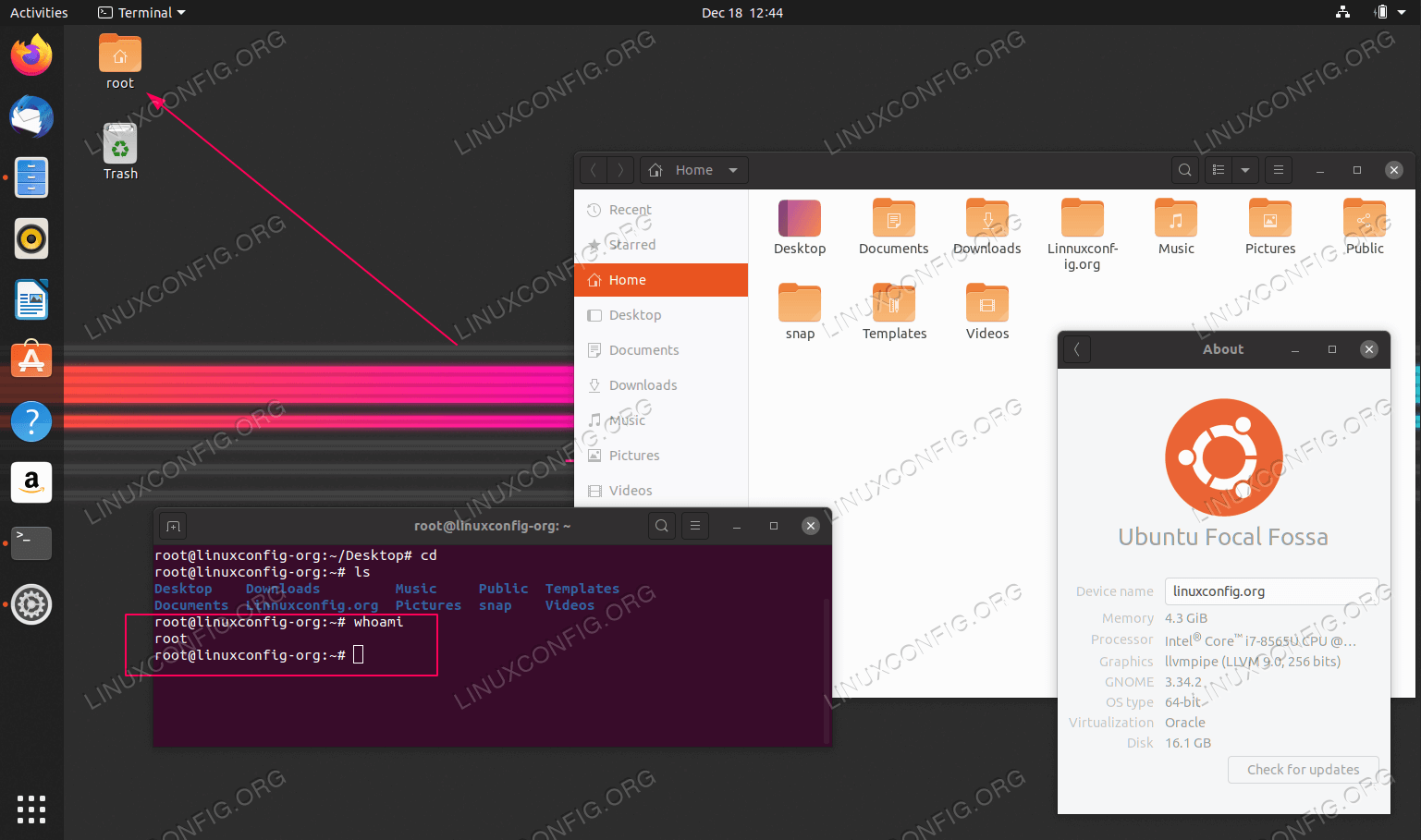
Allow GUI root login on Ubuntu 20.04 Focal Fossa Linux Desktop
Software Requirements and Conventions Used
| | |
| — | — |Software Requirements and Linux Command Line Conventions
| Category | Requirements, Conventions or Software Version Used |
|---|---|
| System | Installed Ubuntu 20.04 or upgraded Ubuntu 20.04 Focal Fossa |
| Software | N/A |
| Other | Privileged access to your Linux system as root or via the sudo command. |
| Conventions | # – requires given linux commands to be executed with root privileges either directly as a root user or by use of sudo command$ – requires given linux commands to be executed as a regular non-privileged user |
Allow GUI root login on Ubuntu 20.04 step by step instructions
First step is to set root password:
$ sudo passwd
The above command will set a root password which will be later user to login to GUI.
Next, step is to edit the
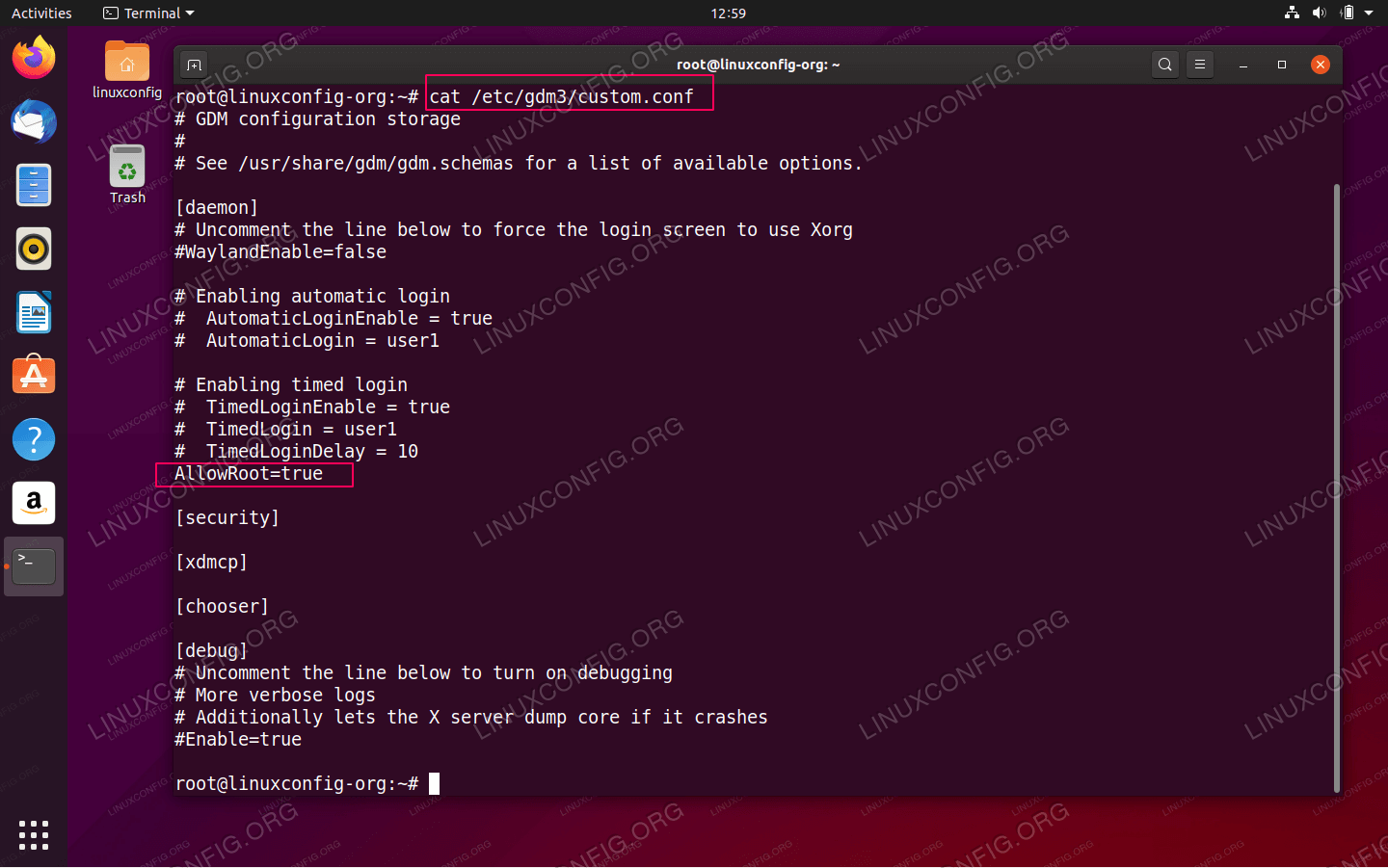
/etc/gdm3/custom.confGDM configuration file to allow root login.
use your favourite text editor and as a root user edit the
/etc/gdm3/custom.conffile to add theAllowRoot=trueline.Next, edit PAM authentication daemon configuration file
/etc/pam.d/gdm-passwordand comment line which denies root access to graphical user interface.To do so edit file
<mark>/etc/pam.d/gdm-password</mark>and put#in front of the line containing:auth required pam_succeed_if.so user != root quiet_success
磁盘大小调整,有还原点的要选择avhdex文件
先编辑磁盘大小